
In this post i will be explaining about how to export the database objects to backpac and import from bacpac file.
- Connect to SQL Server , Right click on the database and Go to Tasks –> Export Data Tier Application

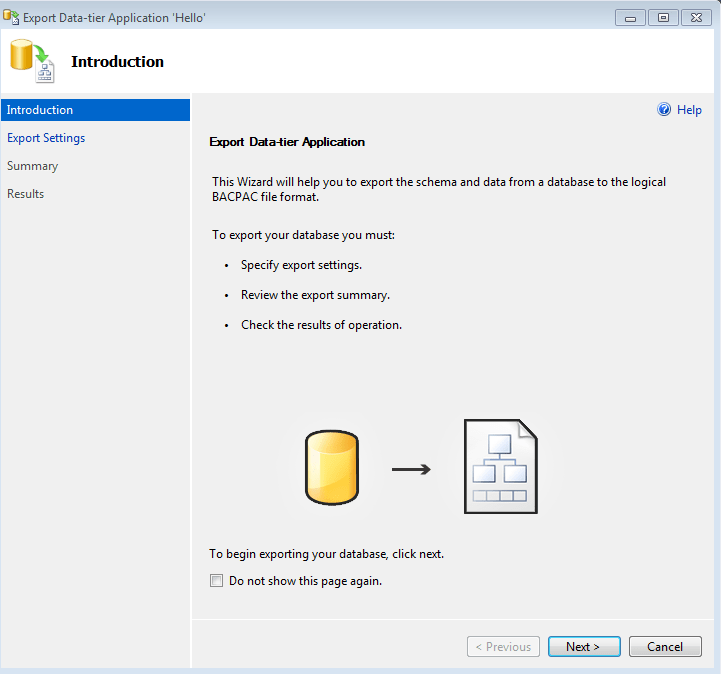
2. Introduction screen will be appeared as shown below, click next to continue
3. Export setting screen , please select where you want to store the bacpac file. It can be either on windows azure machine or on local machine. I have selected local in this example.

4. Please provide the location of the file to save the bacpac file.

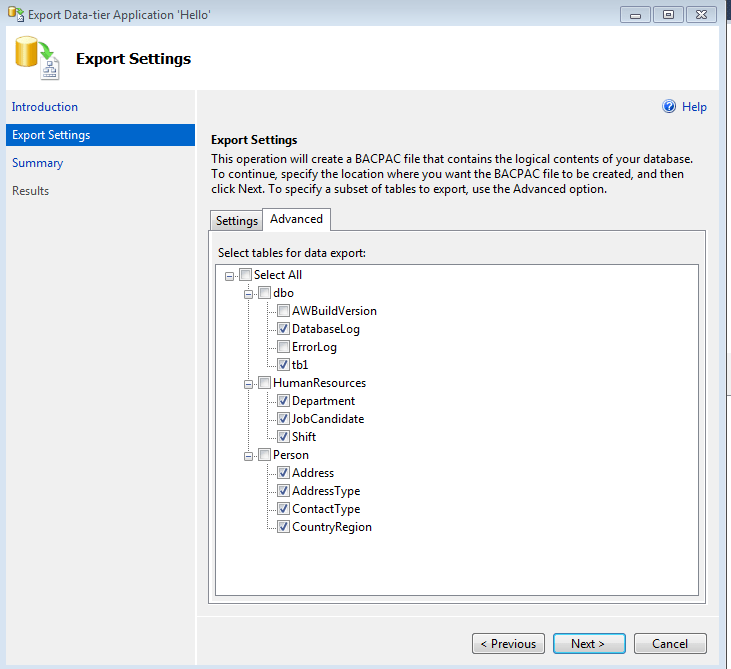
5. Same export settings screen, click on advance tab to select the objects you would like to export. Once you have selected, click next to proceed
6. Progress screen will appear, it will show the progress of the export as shown in below figure

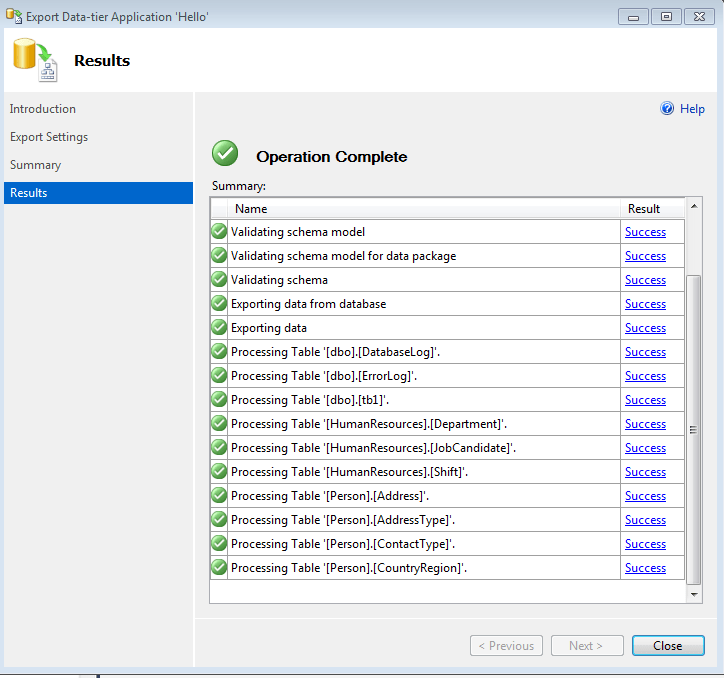
7. Results screen will appear after completion of export as shown in below figure.
8. You have successfully exported the database objects as bacpac file. Let us create new database by importing the bacpac file in another server. Right click on databases and select import Data-tier Application as shown in below screen
`

9. Introduction screen will appear as show in below figure. Click next to continue

10. Import settings screen will appear and specify the bacpac file which was created before. If you have stored the bacpac file in windows azure blob storage then you can select second option to import the bacpac file. In this example, i have saved the bacpac file on the local machine. Click next to continue.

11. Database settings screen will appear as below, specify the name of the database , data and log file path. In this case i have specified database name as “Hello_Test” and the paths are on the same drive. Best practice is to keep the data and log files separated. Click next to continue.

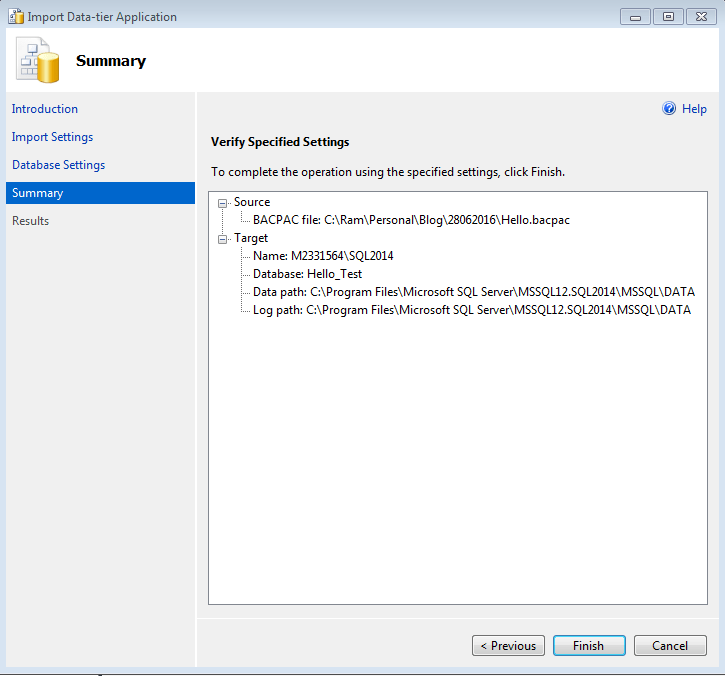
12. You would see summary screen as below after the above step. Click next to continue.
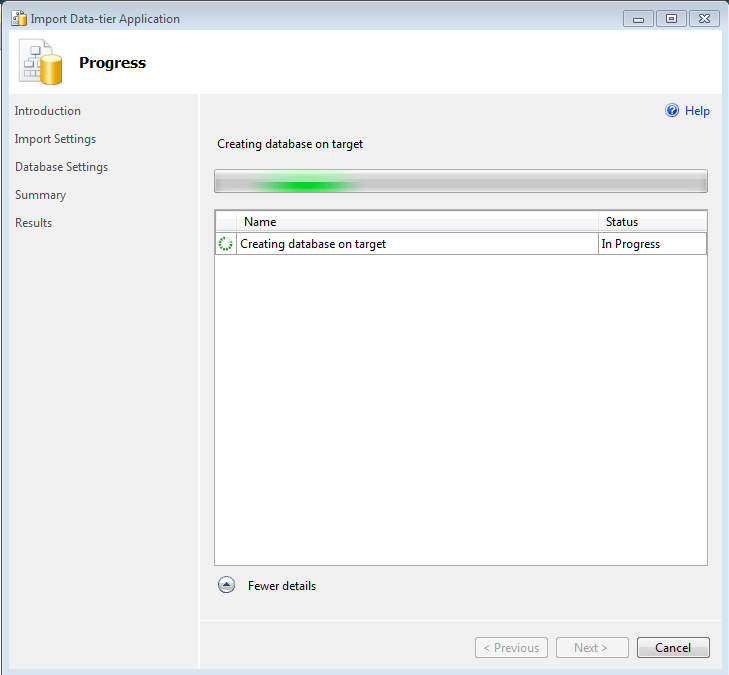
13. Progress screen will appear and will display the progress of the database import as show in the below figure. Click next to continue.
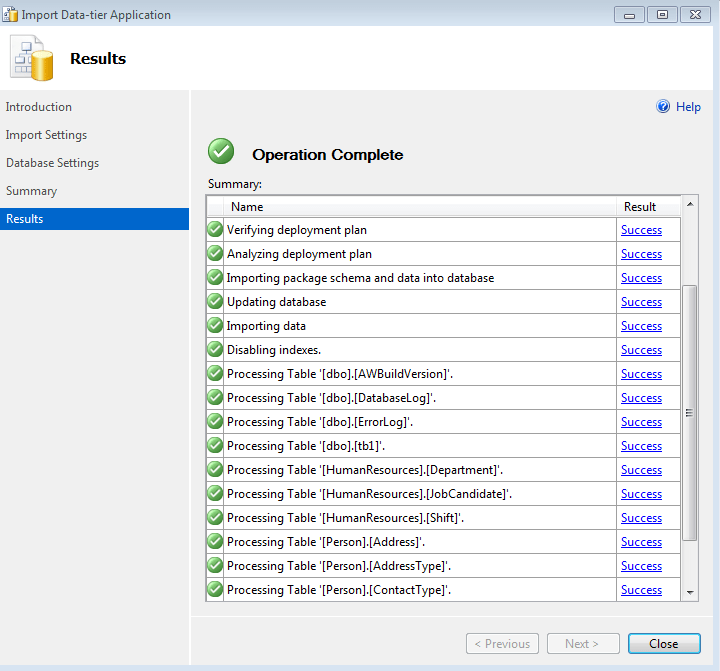
14. Results screen will show you the results of import progress. As you can see in the below screeshot, the import operation completed. Let us see the new database “Hello_Test” and the objects.
15. There you go. New database “Hello_Test” has been created.

So far you have learned how to export database objects as bacpac and import the bacpac to create a database. You may think, the same can be achieved by doing backup and restore. Yes, we can achieve using backup and restore. But,
- You do not have an option to chose few database objects/Schemas to import rather than complete database, unless you maintain separate file groups for different objects.
- Import a BACPAC file to create a new Azure SQL database.
- Restore SQL Azure database to MS SQL Server.
Cheers
Hope you like the post!
Ramasankar Molleti
LinkedIn: LinkedIn Profile
Twitter: Twitter
 Ramasankar Molleti Blog