
You have Moved the tempdb to other drive and forgot to add the name of the MDF and LDF at the end of the file path, hence the error Error: 5123, Severity: 16, State: 1. Also, unable to restart the SQL Server. Don’t be panic. We can fix this.
In this example I’m going to move the tempdb without providing the file names of data and log.
Find the location of the tempdb files
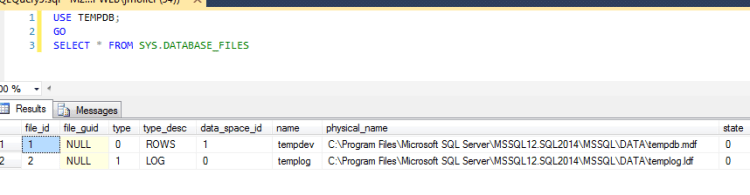
you can also use
select name,physical_name From sys.master_files where database_id = 2
Let’s move the tempdb to new location without providing the name of the files
ALTER DATABASE TEMPDB MODIFY FILE (NAME = 'TEMPDEV',
FILENAME = 'C:\Tempdb\')
ALTER DATABASE TEMPDB MODIFY FILE (NAME = 'TEMPLOG', FILENAME = 'C:\Tempdb\')

Check the file name paths
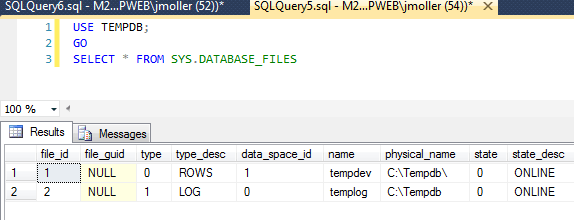
You can see that the tempdb files are modified in system catalog. Let’s restart the sql server service for change to be effected. I have restarted the service and trying to connect to sql server but it fails.
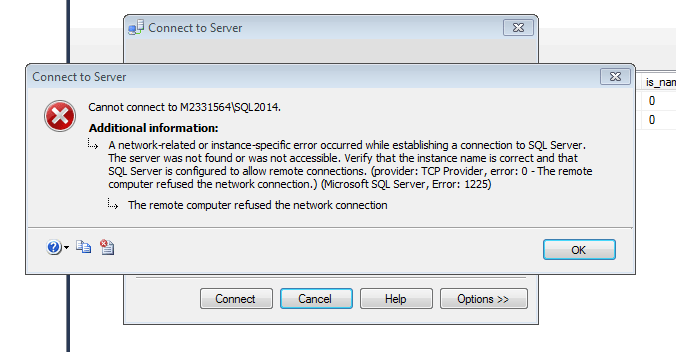
Event viewer shows
Event 5123
FCB::Open failed: Could not open file C:\Tempdb\ for file number 1. OS error: 3(The system cannot find the path specified.).
CREATE FILE encountered operating system error 3(The system cannot find the path specified.) while attempting to open or create the physical file ‘C:\Tempdb\’.
So now that we can’t get into SQL Server. How do we fix it?
Go to command prompt and change the directory to sql server instance Binn directory, then type sqlsrvr -c -f
In my machine i have used named instance so the command would be
C:\Program Files\Microsoft SQL Server\MSSQL12.SQL2014\MSSQL\Binn>sqlservr -sSQL2014 -c -f
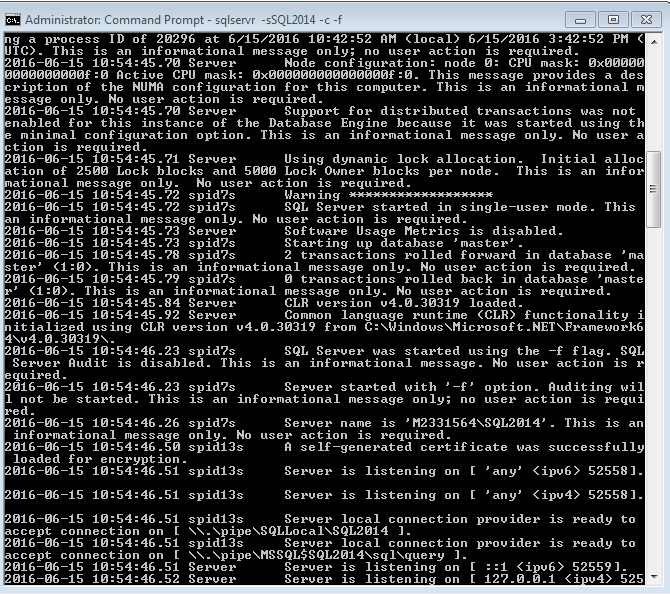
Now the SQL Server instance is running in single user mode. You can connect to SQL Server.

There you go! you have connected to the instance. Check the path of the tempdb by running the below T-SQL
select name,physical_name From sys.master_files
where database_id = 2;go

You can see in the above screenshot that the physical name was not correctly given. It shows C:\Tempdb. Let us modify the physical path.
ALTER DATABASE tempdb MODIFY FILE (NAME = 'tempdev', FILENAME = 'c:\tempdb\tempdb.mdf')
ALTER DATABASE tempdb MODIFY FILE (NAME = 'templog', FILENAME = 'c:\tempdb\tempdb.ldf')
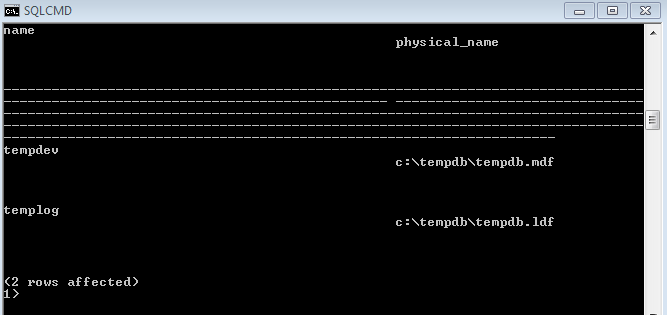
Here you go! Correct tempdb path.
Once tempdb has been correctly configured , you can close the SQL Server Instance running in the command prompts by pressing Ctrl+C with the window active. Then restart the SQL Service from the sql server configuration manager.
I have restarted the sql server and open the sql server instance normally. There you go! You have fixed the problem.
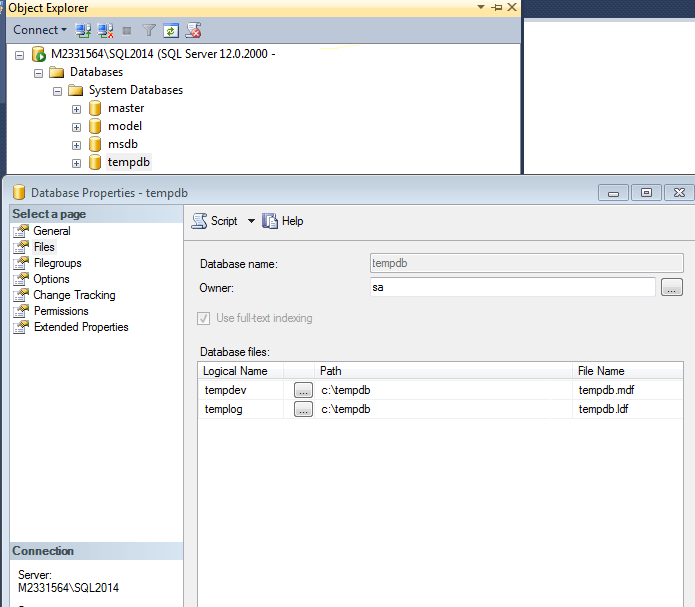
Note: I have used different parameters
-c : Start as a console application, not as a service.
-m: Start the SQL service in single user mode
-f : Start the SQL service in Minimal configuration mode.
-s : Connect to named instance of sql server
Cheers
Hope you enjoyed the post!
Ramasankar Molleti
LinkedIn: LinkedIn Profile
Twitter: Twitter
 Ramasankar Molleti Blog